
Connect once, then use it in your chat
Connect Metaflex to your AI
Choose your AI. We will guide you from opening it to your first chat with Metaflex.
You need a Metaflex account with active access and an AI account that permits custom connections. AI costs are not included. No Metaflex account yet?
Connect Metaflex to ChatGPT
ChatGPT: currently in the browser. Set up custom connections there, not in the ChatGPT app.
We recommend ChatGPT: in our tests so far, it made the best use of Metaflex features.
Open ChatGPT
Open ChatGPT in your browser and sign in to your AI account. These instructions stay open in this tab.
If a mobile app opens, open the address directly in Safari, Chrome or your other browser instead.
Add Metaflex
From the ChatGPT home page, select “Plugins” in the left sidebar. On the plugins page, “Add” is at the top right. Open that menu and select “Add custom MCP server”. The button in step 1 opens this plugins page directly.
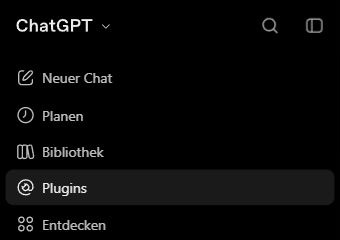
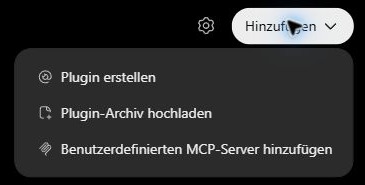
Current screenshots from 19 November 2026. German interface shown; personal account areas are excluded.
Watch the connection video
The existing short video starts with an account already set up. Menu labels may differ; follow the current text instructions on this page.
Enter these details
- Name
- Metaflex
- Server address / Server URL
https://metaflex-rhythmus.de/app/mcp- Sign-in / Authentication
- OAuth
Icon and description are optional. You do not need a tunnel for this setup. Leave “Advanced OAuth settings” closed initially.
Read the risk warning. If you want to give Metaflex access, confirm “I understand and want to continue”. The confirmation button at the end of this form is called “Create as a plugin” — that is the correct button. Select it to create this MCP entry.
Sign in to Metaflex
When the Metaflex sign-in window opens, use the same email address and Metaflex password as on this website. This is not your AI provider password.
Review the app and the permissions shown. Choose “Allow and connect” to grant access, then return to your AI.
If “Install” or “Connect” is offered afterwards, complete that step as well.
Start your first chat
Open a new ChatGPT conversation. Type @ and select Metaflex from the list. Then send:
Metaflex, start the setup.Selecting the app alone does not confirm the connection. Once your AI successfully calls Metaflex, you can begin the setup.
Menu missing or different? Availability depends on your AI account and organization. Current provider instructions ↗ · Metaflex support
Connect Metaflex to Claude
These steps refer to the browser version.
Open Claude
Open Claude in your browser and sign in to your AI account. These instructions stay open in this tab.
If a mobile app opens, open the address directly in Safari, Chrome or your other browser instead.
Add Metaflex
Open “Customize → Connectors” in Claude; the button in step 1 takes you there directly. Select “+ Add”, then “Add custom connector”. For Team and Enterprise, an organization owner may first need to add it under “Organization settings → Connectors”.
Enter these details
- Name
- Metaflex
- Server address / Server URL
https://metaflex-rhythmus.de/app/mcp- Sign-in / Authentication
- OAuth
After entering the server URL, select “Continue”, review the detected authentication and continue. Choose “Sign in now”. If an OAuth client choice appears, Metaflex supports “Register automatically”. Do not enter custom client credentials or request headers. Finish with “Add”.
Sign in to Metaflex
When the Metaflex sign-in window opens, use the same email address and Metaflex password as on this website. This is not your AI provider password.
Review the app and the permissions shown. Choose “Allow and connect” to grant access, then return to your AI.
If “Install” or “Connect” is offered afterwards, complete that step as well.
Start your first chat
Open a new conversation. Use the “+” menu below the message box to find connectors and enable Metaflex. Then send:
Metaflex, start the setup.Selecting the app alone does not confirm the connection. Once your AI successfully calls Metaflex, you can begin the setup.
Menu missing or different? Availability depends on your AI account and organization. Current provider instructions ↗ · Metaflex support
Connect Metaflex to Grok
These steps refer to the browser version.
Open Grok
Open Grok in your browser and sign in to your AI account. These instructions stay open in this tab.
If a mobile app opens, open the address directly in Safari, Chrome or your other browser instead.
Add Metaflex
The button in step 1 opens the Grok connectors page. From the Grok home page, you can also enter grok.com/connectors in your browser’s address bar. On that connectors page, select “New Connector”, then “Custom”.
Enter these details
- Name
- Metaflex
- Server address / Server URL
https://metaflex-rhythmus.de/app/mcp- Sign-in / Authentication
- OAuth
Paste the address into the MCP server URL field and use OAuth if an authentication choice is shown. Then follow the sign-in flow.
Sign in to Metaflex
When the Metaflex sign-in window opens, use the same email address and Metaflex password as on this website. This is not your AI provider password.
Review the app and the permissions shown. Choose “Allow and connect” to grant access, then return to your AI.
If “Install” or “Connect” is offered afterwards, complete that step as well.
Start your first chat
Open a new Grok conversation and explicitly ask it to use Metaflex:
Metaflex, start the setup.Selecting the app alone does not confirm the connection. Once your AI successfully calls Metaflex, you can begin the setup.
Menu missing or different? Availability depends on your AI account and organization. Current provider instructions ↗ · Metaflex support
Setup help
No account or no access yet?
The founder round offers 30 days free, with no payment details. Verify your email address and set a Metaflex password. Access ends automatically; a subscription is optional afterwards.
View the founder round · Already registered? Open your account
If you already have other valid access, connect it directly. You do not need a second account or another purchase.
Forgot your password or moving an existing account?
Your existing app password still works. Use the same email address and password on the website and when connecting. You do not need a new key.
Changing your password using the old password preserves your data. If you forgot your password or are migrating old key-based data, you need your saved key to preserve the data. An explicitly confirmed fresh start deletes previous data and signs out AI apps. Ask support if unsure before starting over.
Metaflex is missing from the chat or sign-in fails
Check that Metaflex has been added, connected and installed if required in your AI. In ChatGPT, type @ and select the entry from the list. Merely typing the name is not enough.
If the custom connection menu itself is missing, check the provider instructions and organization permissions. Do not buy a more expensive AI plan on speculation.
Enter your app password only on the Metaflex sign-in page, never in chat. Do not share passwords or keys with support. Get help
Alternative: older key-based connection via /mcp
Existing key-based access remains supported. If your client has a secure credential field for HTTP headers, you can enter your existing key as Authorization: Bearer. https://metaflex-rhythmus.de/mcp
The key grants access to your diary. Never enter it in chat. Replacing it deletes the previous data area; export your data first. You do not need to copy a key for the normal OAuth connection above.